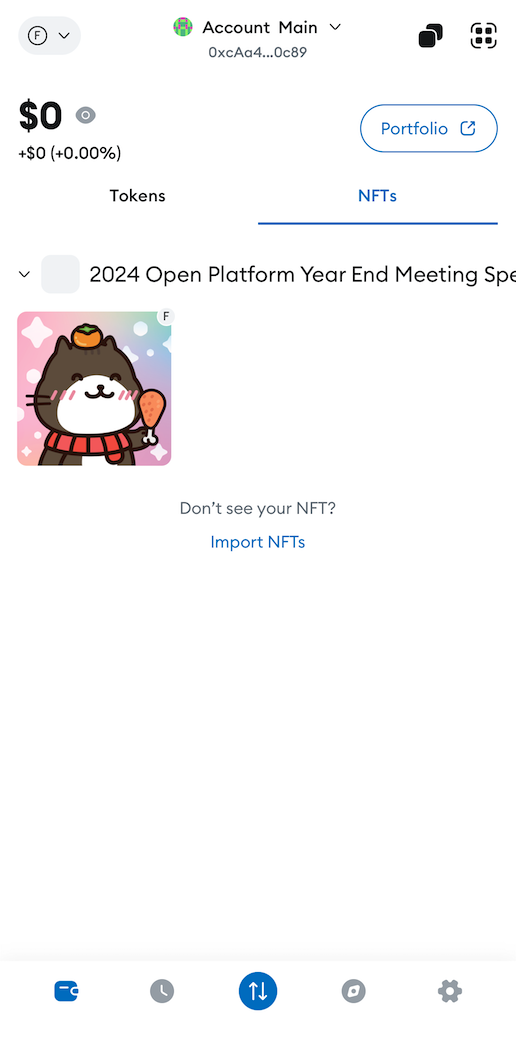

Guide to import an NFT in your personal Web3 wallet#
How to manually import an NFT in your personal Web3 wallet?#
To import your NFT in your crypto wallet, follow the steps below. Please note that you will need to connect your wallet to our POTOS Network to view your NFT in your wallet.
Step 1: Find the NFT’s address and ID
On the NFT’s page under Details, there is a purple hyperlinked value labelled ‘Contract Address’. If you click ‘copy’ icon, you’ll have it on your clipboard. Also find the NFT’s ID’s value labelled ‘Token ID’.

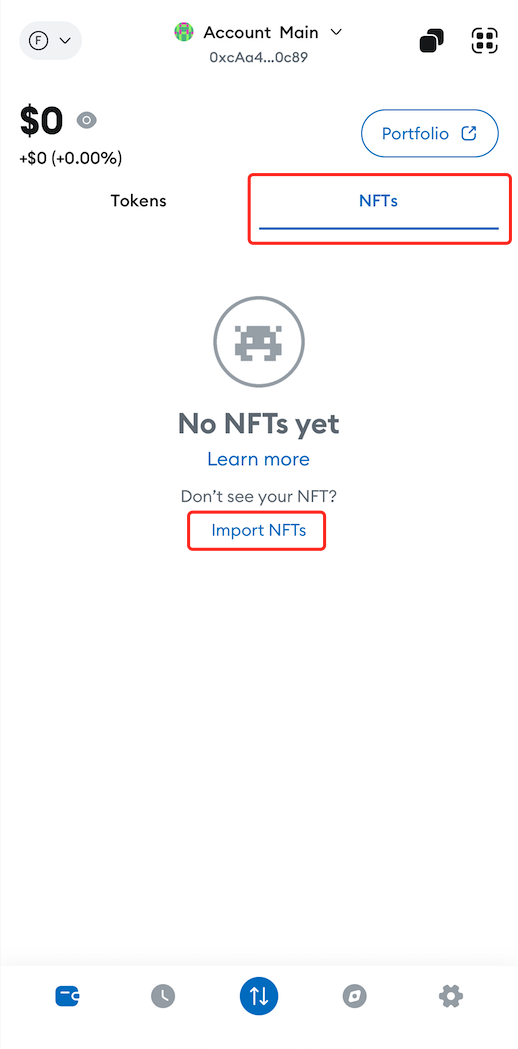
Step 2: Open wallet and import NFTs
In MetaMask Mobile, for example, click on the ‘NFTs’ tab, scroll down and select the ‘Import NFTs’ link.
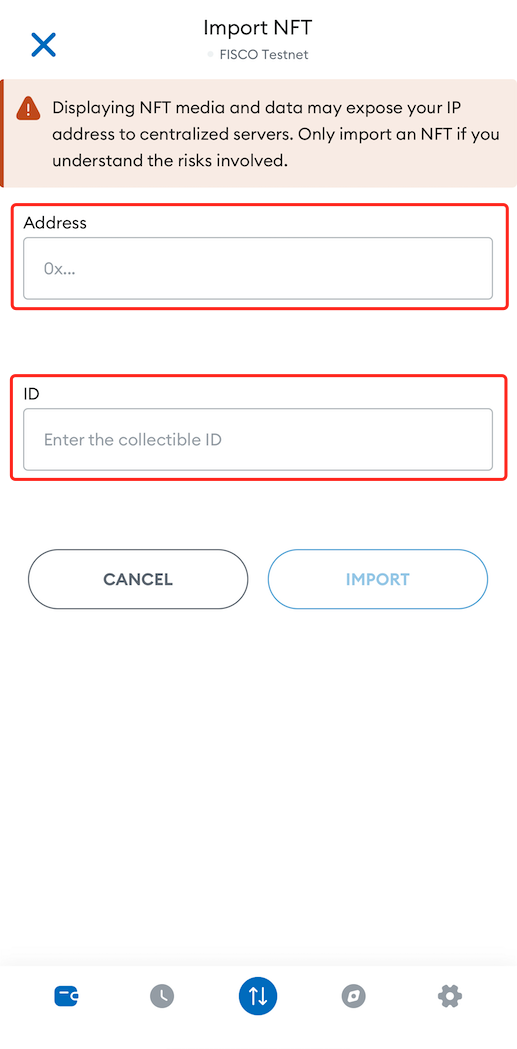
Step 3: Input NFT’s address and ID
Paste the NFT’s address from your clipboard into the ‘Address’ box and input NFT’s ID into ‘ID’.
Step 4: Connect to Our POTOS Network
To view your NFT in your wallet, you need to connect your wallet to our POTOS Network. If you’re unsure how to do this, refer to our help center for detailed instructions or contact our support team.